Workday 2026 R2 reached production on 19 September. Employees logged in to a new Home page with two columns, a Daily Brief, an Important Dates widget, and My Team where Team Highlights used to be. Managers got Insights cards. The worker profile has a new header and tabs.
Your job aids still show the old screens, and so do the videos in your LMS. Users will spot the difference quickly.
You can’t realistically update everything. What you can do is work out which pieces changed for which roles, fix those fast, and keep a routine you repeat every March and September.
Why Workday training goes stale twice a year, and in between
Workday ships change in two ways. Weekly service updates go out most Friday nights into Saturday and usually change nothing users can see. Feature releases come twice a year: R1 in March and R2 in September.
The feature releases are where screens move. 2026 R1 moved the Home page search field from the header into the page body. R2 followed with the reworked Home page, changes to global navigation (including Reset Menu to Default), and a redesigned Worker Profile with a collapsible menu and Private and Public tabs.
The window is short. R2 feature documentation came out on 7 August, preview tenants refreshed on 15 August and production followed on 19 September. That gave you about five weeks to test and update training.
One read of the release notes won’t cover it either. Workday releases new features weekly between major releases, and can add them as late as the week before production.
Hand-made job aids fall behind because every screenshot is a separate manual fix. When Home changes, nearly all of them need one.
Triage Workday release changes against your own tenant
Some R2 changes switch on by themselves. Others depend on your configuration: which Home widgets appear and in what order, and whether the sidebar is hidden by default. So your Home page may not match Workday’s demo screens or another organisation’s screenshots.
Your business processes and security groups also shape what each person sees. An approver in your tenant might see a step that Workday’s example process doesn’t have.
Workday gives you two places to sort this out:
- Release Center collects notes on new, coming-soon and retiring features, plus bug fixes. Most updates land on Wednesdays, with a catch-up on Fridays (Pacific time).
- The What’s New in Workday report covers feature notes only. You can filter it by tenant (Preview or Production), functional area and release, and it shows a preview date and a production date for each feature.
Both let you filter by Setup Effort, which has two values. Automatically Available features change your screens with no admin action, so start there. Setup Required features matter only if your team turns them on.
Match the changes to the roles you train
Next, map the list to the roles your library serves. For R2, the obvious candidates were:
- Employee: the new Home page, the redesigned worker profile, bank account numbers masked by default (with a toggle to show them), and absence requests that come back with a reason and can be edited from the inbox.
- Manager: the My Team widget and Manager Insights cards.
- Time approver: possibly the resubmitted absence request, if your approval screens show the edit history.
- HR partner: the worker profile layout used in almost every worker-level task.
- Finance lead: possibly nothing in their core processes. Their videos still change if they open on Home or use the menu.
Build the triage list by walking each role’s top tasks in your preview tenant. A release highlights deck can’t tell you what your configuration shows.
Why short, role-scoped videos cost less to update
Imagine a 20-minute “Workday for managers” video. A Home page change makes the whole thing look old, and fixing it means recording it again from start to finish.
Now picture a library of short task videos, each 90 seconds to four minutes, with one role doing one task. A business process with an initiator, approvers and a downstream reviewer becomes several short linked videos. In a library built this way, the R2 change to sent-back absence requests would touch the employee’s resubmit video, and possibly the approver’s. The initiation video would stay as it is.
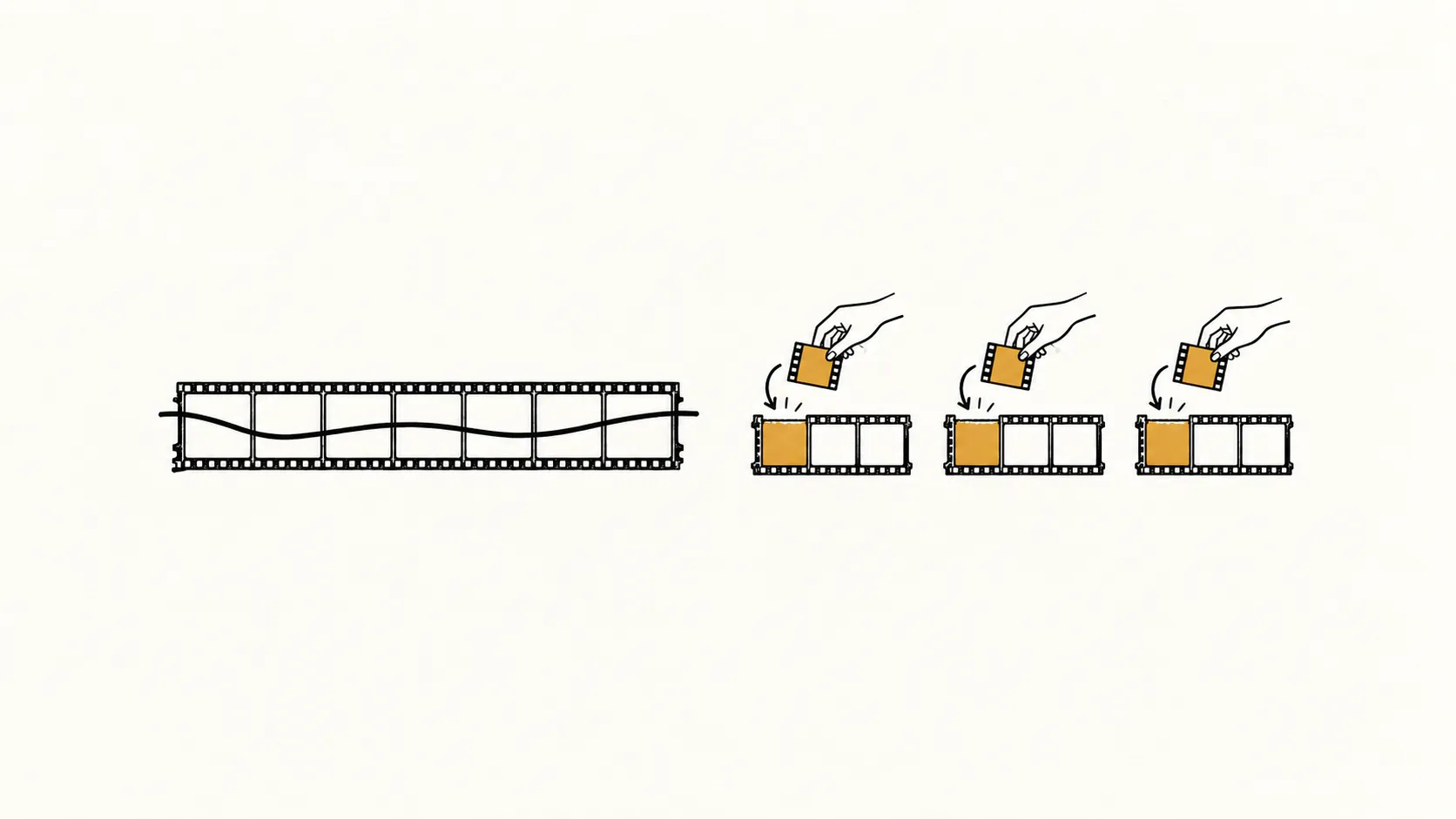 FIG. 01 · A long video is redone whole; short modules swap only the opening.
Two habits make this work:
- Keep the opening separate. Almost every Workday video starts on Home or uses the global menu. If the opening is its own short segment, a Home redesign means replacing a few seconds of footage while the task itself stays put.
- Write narration about the task. “Open the request from your inbox and correct the dates” still holds after a button moves. “Click the blue button at top right” doesn’t.
Do both and the narration usually survives a release, so only the footage changes. Our post on the shelf-life problem explains why that matters: if a re-cut costs as much as the original video, teams stop re-cutting and paste on addenda.
What each type of Workday change means for your library
| Type of change | 2026 example | What to update |
|---|---|---|
| Label or field moved | Home search field moved (R1); bank account masked by default (R2) | Re-record the affected shot. Check whether narration or captions name the old label. |
| Changed step or flow in a business process | Sent-back absence requests now editable from the inbox | Add or re-record the segment for the changed step. Update narration, captions, transcript and package. |
| New or redesigned screen | Home page, Worker Profile | Re-record the opening or the affected segment. Replace job aid screenshots. |
| Navigation change | Menu customisation, sidebar hidden by default | Re-record the navigation shots in every video that uses them. |
| Setup Required, not enabled | Any feature you haven’t switched on | Nothing yet. Log it for when you enable it. |
A release-week checklist
- When feature documentation is published, run What’s New in Workday filtered to Automatically Available and your functional areas.
- Add the Setup Required features your team plans to enable.
- Map each item to roles and to specific videos and job aids. A simple sheet is enough: module, role, business process, affected yes or no.
- After the preview refresh, walk each affected task in preview as that role, with your configuration.
- Classify each change using the table above.
- Re-cut the affected modules only. Leave the rest alone.
- Update captions, transcripts and SCORM packages at the same time as the video.
- Check Release Center every week until production for late additions.
- On release day, spot-check production against the new modules, publish them, and tell users what changed.
Keep captions, transcripts and SCORM in step with the video
Step 7 is the one teams miss most. The video gets re-cut, but the WebVTT or SRT file is still timed to the old cut, so captions drift. The transcript describes a step that no longer exists. Or the LMS keeps serving the old package.
Treat each module as one bundle: the MP4, the WebVTT and SRT captions, the transcript and the SCORM 1.2 or 2004 package. Version them together, with one version number, and don’t publish one part without the others. If a re-cut changes the module’s length, re-time the captions against the new cut.
If you’re working to WCAG 2.2 AA, captions and transcripts have to match what’s said and shown. Replace the package in your LMS instead of adding a second copy, so learners only find the current version.
Get your Workday library back in step
Seismic produces role-based Workday training videos built on your own configuration.